Journey of Generosity
The best tip we can give you when it comes to technology is to be prepared! Connect with your JOG host, facilitator, or venue administrative contact to understand the TV and sound setup beforehand and make a technology plan.
We recommend that you always download the videos to your device and bring an HDMI and appropriate adapter to ensure you can show them even if you encounter issues with Wi-Fi and/or streaming at the JOG.
Step 1
Choose your Device
You will need to choose which device you will use to stream videos to a TV. You can use a laptop through an internet browser or the Vimeo App on your phone or tablet.
Using Your Laptop Computer
We have found Google Chrome to be the most compatible internet browser for showing JOG videos with your laptop. You can download the latest version here: google.com/chrome/
- Navigate to this link: generousgiving.org/jog-videos – We suggest bookmarking or saving this link for future reference or in case you are directed away from the playlist for any reason during the JOG.
- See download instructions to download these videos to your laptop. We recommend that you always download videos to your device to ensure you can show them even if you encounter issues with Wi-Fi at the JOG.
- Explore your options to connect to the TV at the JOG venue. We recommend always bringing an HDMI cord and the appropriate adapter for your laptop in case of Wi-Fi and/or streaming issues at the JOG.

Using Your Phone or Tablet
Option 1: Saving Directly to Your Device
- Use the QR code below to open the video playlist you will use to access all videos during the JOG. We suggest bookmarking or saving this link in the Notes app in your phone, or in your text messages for future reference or in case you are directed away from the playlist for any reason during the JOG.
- Tap the download icon (arrow pointing down) in the bottom right corner of the video. We recommend that you choose 720p and tap download. This size requires less storage on your device, but still shows with clear quality on a screen.
- Find the downloaded files in the “Downloads” folder on your browser settings.
- Open the video file, and save it to your Photos app on your device. We recommend adding it to an organized folder album in your Photos app for easy access during your JOG.
- Repeat steps 2-4 until all of the JOG videos you would like to show are downloaded to your device.
- Explore your options to connect to the TV at the JOG venue. We recommend always bringing an HDMI cord and the appropriate adapter for your device in case of Wi-Fi and/or streaming issues at the JOG.
Option 2: Using the Vimeo App
- Navigate to the App Store
- Download the Vimeo App
- Open the Vimeo App
- Sign up for a free account if you do not already have one
- Use the QR code below to open the video playlist you will use to access all videos during the JOG. We suggest bookmarking or saving this link in the Notes app in your phone, or in your text messages for future reference or in case you are directed away from the playlist for any reason during the JOG.
- Click the banner at the top of your browser directing you to open the playlist in the Vimeo app.
- See download instructions to save these videos to an offline playlist or download them directly to your device. We recommend that you always download videos to your device to ensure you can show them even if you encounter issues with Wi-Fi at the JOG.
- Explore your options to connect to the TV at the JOG venue. We recommend always bringing an HDMI cord and the appropriate adaptor for your device in case of Wi-Fi and/or streaming issues at the JOG.
Step 2
Download the Videos
We recommend that you always download the videos to your device before your JOG. This is a necessary step in case slow Internet causes the videos to buffer, or if your JOG is in a remote location without access to Wi-Fi.
Downloading Videos on your Laptop
- Within your JOG Video Playlist, click the download icon (arrow pointing down) in the bottom right corner of the videos you want to download to your device. You will download each video individually.
- We recommend that you choose HD 1080p. This size requires less storage on your computer, but still shows with clear quality on a screen.
- Once the video downloads, we recommend saving it to an organized folder on your desktop for easy access during your JOG.
- Explore your options to connect to the TV at the JOG venue. We recommend always bringing an HDMI cord and the appropriate adapter for your device in case of Wi-Fi and/or streaming issues at the JOG.
Downloading Videos Directly on your Phone or Tablet
- Use the QR code below to open the video playlist you will use to access all videos during the JOG. We suggest bookmarking or saving this link in the Notes app in your phone, or in your text messages for future reference or in case you are directed away from the playlist for any reason during the JOG.
- Tap the download icon (arrow pointing down) in the bottom right corner of the video. We recommend that you choose 720p and tap download. This size requires less storage on your device, but still shows with clear quality on a screen.
- Find the downloaded files in the “Downloads” folder on your browser settings.
- Open the video file, and save it to your Photos app on your device. We recommend adding it to an organized folder album in your Photos app for easy access during your JOG.
- Repeat steps 2-4 until all of the JOG videos you would like to show are downloaded to your device.
- Explore your options to connect to the TV at the JOG venue. We recommend always bringing an HDMI cord and the appropriate adapter for your device in case of Wi-Fi and/or streaming issues at the JOG.
Downloading Videos on your Phone or Tablet Using the Vimeo App
- Read these instructions, then watch the video below for a step-by-step tutorial.
- Within the JOG Video Playlist, tap the three dots next to a video
- Tap Save > Save video offline
- Repeat for each video you will show in the JOG
- All videos will store to your offline playlist within the Vimeo app, and will be available to be played without Wi-Fi.
- Where do I find my offline playlist?
- Click the face icon in the top right of the app to access your account settings.
- Under Library, tap Offline
Step 3
Connect to the TV
Determine what method to use: HDMI cord or casting (ex: AirPlay or ChromeCast). We recommend always bringing an HDMI cord and the appropriate adapter for your device in case of Wi-Fi and/or streaming issues at the JOG.
HDMI and Adapter
Directly connecting your device to the TV is the most reliable way to show the JOG videos. Depending on your device, you may also need an HDMI adapter to connect your device to the HDMI cord.
- Almost all TVs have a port in the back or on the side where you can plug in an HDMI cable. Make sure it’s long enough that you are able to easily access your device throughout the JOG.
- If you are using a phone or tablet, you will likely need an adapter to connect the HDMI cord to your phone or tablet. If you are using a laptop and it does not have an HDMI port, you will also need an adapter.
- For devices with a USB-C port (laptops and newer iPhones), we recommend this adapter.
- For older iPhones with a lightning port, we recommend this adapter.
- If you are having issues with your monitor not appearing correctly on the TV, navigate to the display settings of your device and change your screen mirroring dimensions.
- If you are having audio issues, navigate to the audio output setting on your device and confirm that the TV is the selected output device for sound.
Casting
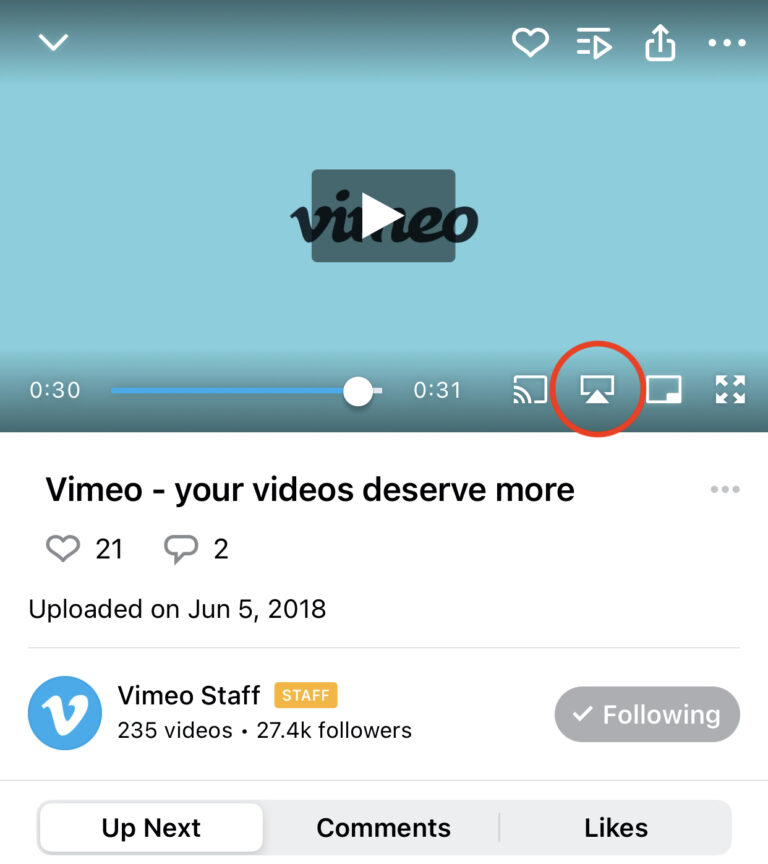
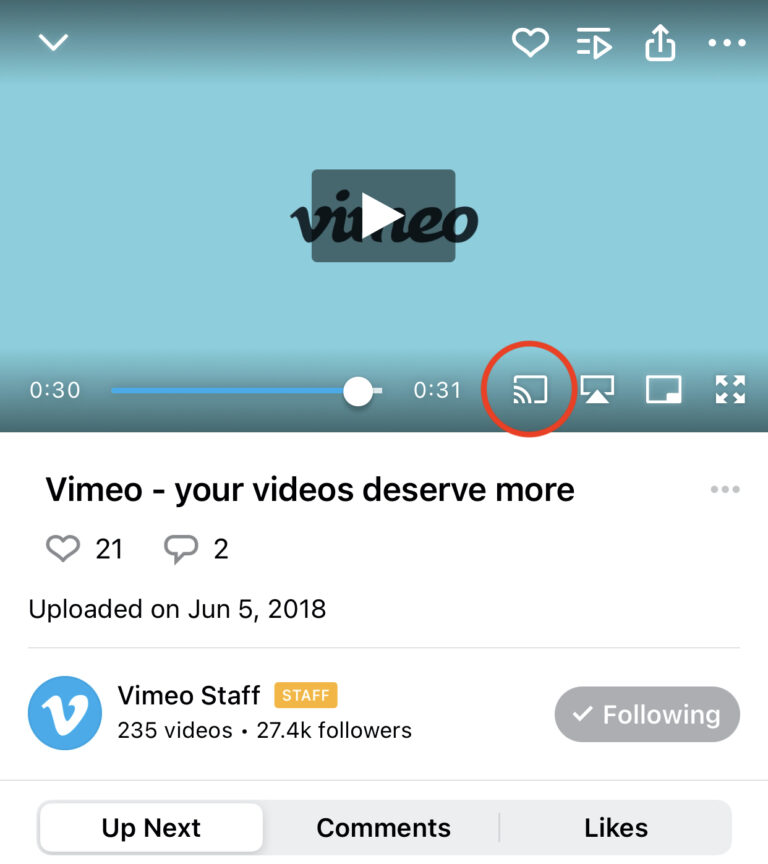
In order to cast, the TV you’re using must be able to connect to Wi-Fi. The device you are casting from must be connected to the same Wi-Fi network. Casting changes based on device and app.* If you’re using the Vimeo app, the icons for casting will appear in the bottom right corner of a video.
*Note: If you use a VPN (Virtual Private Network) on your device, it could interfere with streaming from the Vimeo app. Please be sure to test this out on your device beforehand.
AirPlay
To AirPlay a video to an Apple TV or other AirPlay-capable device using the Vimeo app for iOS, start playing a video within the iOS app on your phone or tablet, tap the AirPlay icon, and select the TV where you want to play your video.
- Viewers can also AirPlay videos from the Safari browser on macOS, iOS, and iPadOS. To do so, tap the AirPlay icon in the Vimeo Player and select your preferred device.
- More information about Apple AirPlay can be found here.
Chromecast
To cast a video to a Google Chromecast device, an Android TV device, or a device with Chromecast built-in, start playing a video within the iOS or Android mobile app, tap the Chromecast icon, and select your preferred device.
- Vimeo currently does not support casting videos from the Chrome web browser.
- More information about Google Chromecast can be found here.
What if I am trying to mirror the videos from the Offline Playlist in the Vimeo app, and it is unreliable?
- If mirroring from the Vimeo Offline Playlist is not reliable, try saving the videos from the Vimeo Showcase to the Photos app on your device and mirroring from there using AirPlay or Chromecast.
- To do this, select the three dots next to the individual video you want to download, and press Save to Camera Roll.
- Give the video a few minutes to download, and you will see it appear in the Photos app.
Tips
More Helpful Tips
Closed Captions/Subtitles
All Journey of Generosity videos include subtitles/closed captioning. On your tablet or phone in the Vimeo app, you can find this feature when clicking the three dots in the upper righthand corner of the video player and selecting “Closed captions.” If you plan to use closed captions on downloaded videos, we suggest using the Vimeo app’s “Offline Playlist” on your phone or tablet, as closed captions are easily accessible within the app.
On your laptop, when you open a video player from the playlist, you will see the “CC” icon in the lower righthand corner.

Questions?
Our team is happy to help! We pray over each JOG and specifically lift up technology and logistics. Contact concierge@generousgiving.org if you need support.